Showing posts with label oracle. Show all posts

Thursday, June 21, 2012

How to Backup/Restore Oracle Beehive Email,Calendar Data - Part II ( Using ThunderBird )

How to Backup/Restore Oracle Beehive Email,Calendar Data  - Part II           ( Using ThunderBird )

In my previous article i demonstrated step-by-step process in backing up and restoring Oracle Beehive data( Email,Calendar,Contacts)  using Microsoft Outlook 2007 , In this blog i am demonstrating step-by-step process for ThunderBird Client.

There are 2 ways to backup/restore Oracle Beehive data using ThunderBird

1) Using ImportExportTools Add-on

This is a add-on to Mozilla Thunderbird, 

a) Install Add-on 

In Mozilla Thunderbird .. Tools -> Add-ons 

search for ImportExportTools Add-on then download and install .

After Installation 

Tools --> ImportExportTools 

Export : 


Choose on of the option
Export all the folders / Export all the folders with structure .. 
then select a folder to which all this folders will be exported.

you can also select a single folder (Inbox) instead of all folders 


Email Messages can be exported in multiple formats
EML / HTML ...etc , then select the folder to which this mails to be exported.


Above image represents the mails exported in EML format.

IMPORT :

select Tools --> ImportExportTools 

then select one of the option, import messages / import mbox / import all messages from a directory.

select import all messages from a directory --> also its subdirectories

select the location of the folder (backup) where you exported your mails .

then thunderbird imports all the EML messages to inbox of the thunderbird.

At the bottom of thunderbird you can check the status of import ...

2) Copy Thunderbird profile folder 

Export:

a) stop thunderbird
b) go to mozilla profile directory (C:\Users\rjuluri\AppData\Roaming\Thunderbird\Profiles\drkctipd.default)
c) copy Mail, ImapMail, calendar-data folder on to a external disk
this folder consists of INBOX.msf , Sent.msf .. all the mails are stored as a single msf file

Import :

a) stop thunderbird on the machine to which you want to import
b) from external disk copy INBOX.msf , Sent.msf to the mozilla profile directory of the another machine to which you want to copy
c) start Mozilla thunderbird .. all the archived mails will be displayed.


Friday, June 01, 2012

How to Backup/Restore Oracle Beehive Email,Calendar Data

How to Backup/Restore Oracle Beehive Email,Calendar Data - Part I ( Using Microsoft Outlook )


In this blog i will demonstrate Step-by-Step process in backing up and restoring of your Oracle Beehive data (emails, contacts, calendars, etc) using Microsoft Outlook 2007.This procedure for both importing and exporting are similar to Outlook 2010.


To launch the Import/Export wizard, Select File menu, navigate to Open, and click Import and Export (as shown in the screenshot below).


Exporting : 


In the Import And Export Wizard, select Export to a file option and hit Next


Under Export to a File panel, select Personal Folder File(.pst) and hit Next


Now make sure Include subfolder is checked, this makes sure that all data including, Emails, Calendar, Contacts, Drafts, etc are exported. To export only a single folder, choose that folder and hit Next.


Now set backup file a name and choose the destination where you want it to be stored and hit Finish


Export Outlook File

Lastly, enter the Password to secure the backup file, as this .pst file can be imported to other's outlook also so for security reasons set the password to this file.


Create Outlook Data File Password

Once done, it will again ask you to enter the password. Enter the same password again and it will begin exporting your data to the file.


Outlook Data File

This Completes exporting of your Oracle Beehive Data.

IMPORTING: 


In the Import And Export wizard, select Import from another program or file option and hit Next


Export And Import Wizard


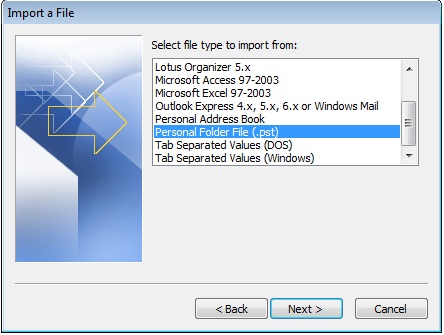
Under File Type to import from, select Personal Folder File(.pst) and hit Next.


Now choose the file to import, select the options, and hit Next.


Import Outlook Data File

It will then ask you to enter the password for the backup file, which you set during the export.


enter password to import the file

Once importing is done, finally select the folder to import from and make sure Include subfolders is checked. You can either import the file to the current folder or choose the folder.


Import Outlook File


This Completes Importing of Oracle Beehive Data to your Microsoft Outlook


Thursday, March 08, 2012

Lightning: Sync Calendar Events and Tasks of Oracle Beehive with Thunderbird

Lightning: Sync Calendar Events and Tasks of Oracle Beehive with Thunderbird


Thunderbird syncs only Email data with the Oracle Beehive, if you want to sync Calendar data and Tasks then one has to download the Lightning add-on from the mozilla site.

http://www.mozilla.org/projects/calendar/lightning/

Lightning is the open-source project for syncing calendar events and tasks (CalDAV) based.

Calendaring Extensions to WebDAV, or CalDAV, is an Internet standard allowing a client to access scheduling  information on a remote server.


After Lightning add-on installation, follow below Configuration steps to sync Thunderbird with Oracle Beehive Server.Separate Beehive plug-ins are not required to configure this.


Basically there are 2 ways to Sync Calendar Events.


1) With out Oracle Beehive Plug-in for Thunderbird.
2) With Oracle Beehive Plug-in for Thunderbird


1) With out Oracle Beehive Plug-in for Thunderbird.


1) Right Click on the Calendar (restart thunderbird after lightning add-on installation) , select New Calendar.


2) Choose on the Network check box.


3) Select Format as CalDAV and Location is the location of the calendar file on the Beehive Server for that specific user. 


https://hostname/caldav/st/home/abc.xyz@ORACLE.COM/calendars/MyCalendar


Replace hostname with the proper server name and abc.xyz is the user name of the Oracle user


4) choose some name to this Calendar,Color (to distinguish calendar events of this with other calendars(GMAIL))


5) After Completion of this configuration, calendar events and tasks will be synced to the Thunderbird from the Oracle Beehive.


All calendar events are populated successfully and color of events are in blue color.


2) With Oracle Beehive Plug-in.


1) Once the lightning add-on is downloaded and installed successfully, Download the latest oracle beehive plug-in from the following site.


http://lightning-oracle.us.oracle.com/mozilla/dist/champion/oracle-beehive-extensions-for-thunderbird-champion-latest.xpi


a) From the settings select Install-addon from the file


 All the Calendar events and tasks are reflected on the Calendar pane of thunderbird.


Popular Posts